
Getting started
Signing in
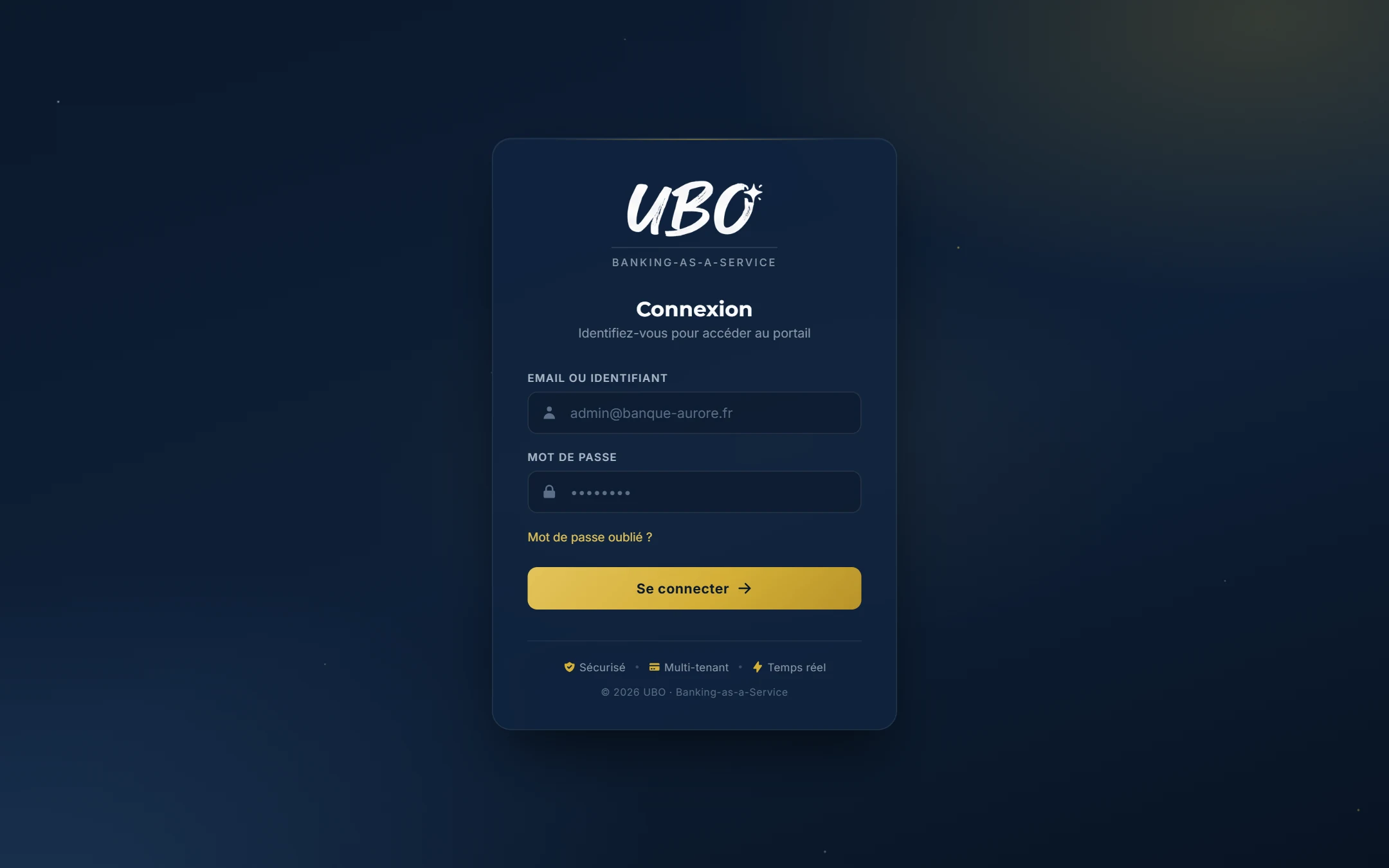
Section titled “Signing in”- Open the portal’s address given by your bank.
- Enter your work e-mail and your password, then Se connecter (sign in). The sign-in is single: the same account opens the portal and, if you have the right, the platform’s other tools.
- Forgotten password: the link under the form sends you a reset e-mail.
Finding your way
Section titled “Finding your way”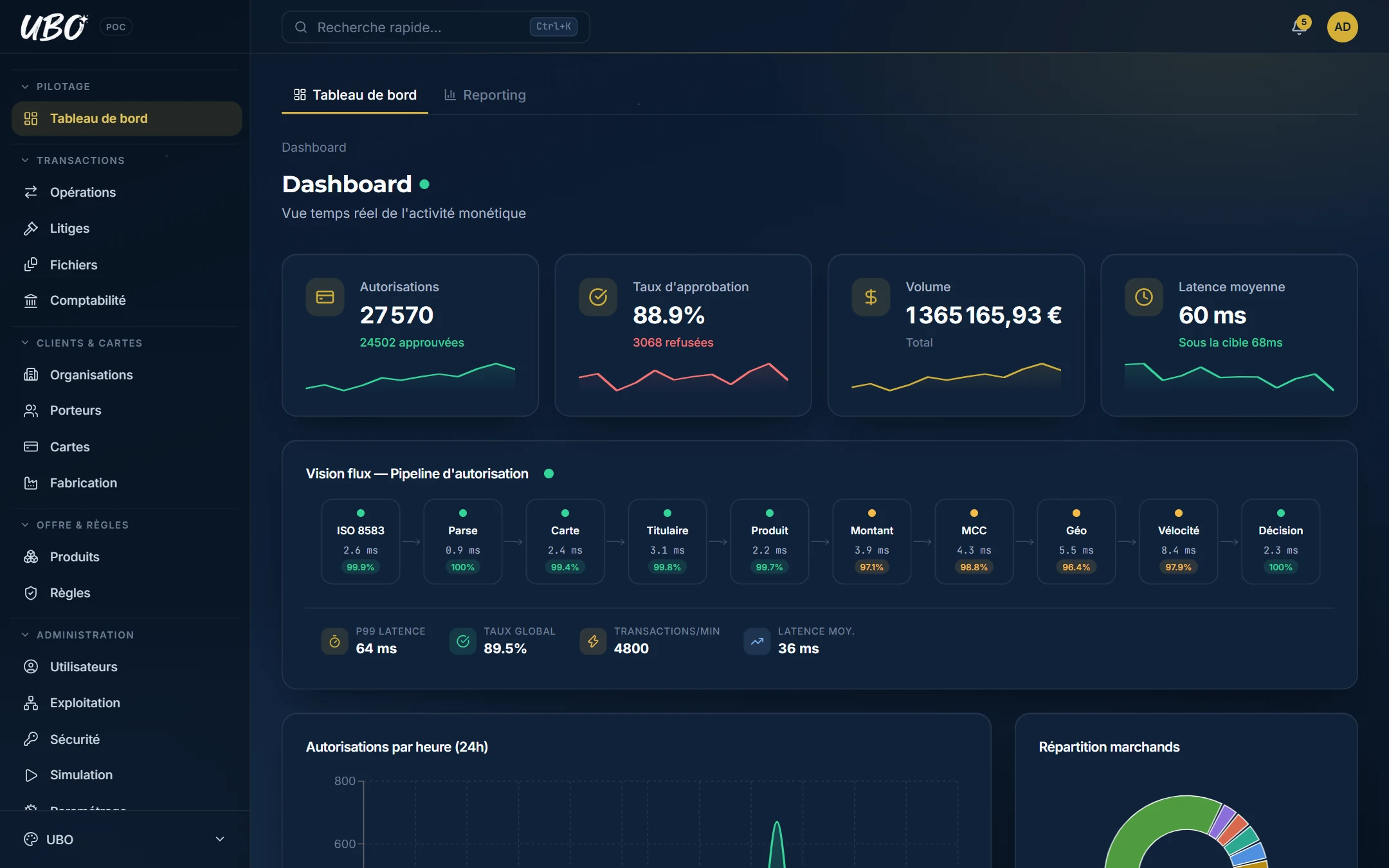
- The menu groups the screens by team: Pilotage (steering), Transactions, Clients & cartes (customers and cards), Offre & règles (offer and rules), Administration. You only see the screens your rights open.
- The tabs at the top of each screen lead to the neighbouring screens (for instance Opérations, Parcours, Alertes, 3-D Secure, Décisions).
- The breadcrumb shows where you are and leads back to the previous screen.
Searching
Section titled “Searching”The quick search (Ctrl + K) finds a screen, a card (by its last four digits), a cardholder (by name or e-mail), an operation or a dispute case, and opens it directly.
In the lists, the search box, the filters and their counts, the sort and the columns apply to all the rows, not only to the page shown; the CSV export too.
Notifications
Section titled “Notifications”The bell shows what waits for an action: fraud alerts to review, dispute deadlines, access requests to approve, certificates about to expire, failed jobs. A click opens the screen concerned.
Your scope
Section titled “Your scope”Your account belongs to one bank. Per your rights, you see the whole bank or only some organisations (a brand, a branch network): the lists, the figures and the reporting are then limited to that scope.
Your rights
Section titled “Your rights”Rights are given by roles (see Users and roles). Each area has three levels:
| Level | Example | What it allows |
|---|---|---|
| Read | cards:read |
Look at the cards |
| Write | cards:write |
Create a card, block it, change its limits |
| Admin | files:admin |
Sensitive actions: download a file, see its lines in clear |
A missing or greyed-out button usually means your role does not allow it.
Appearance
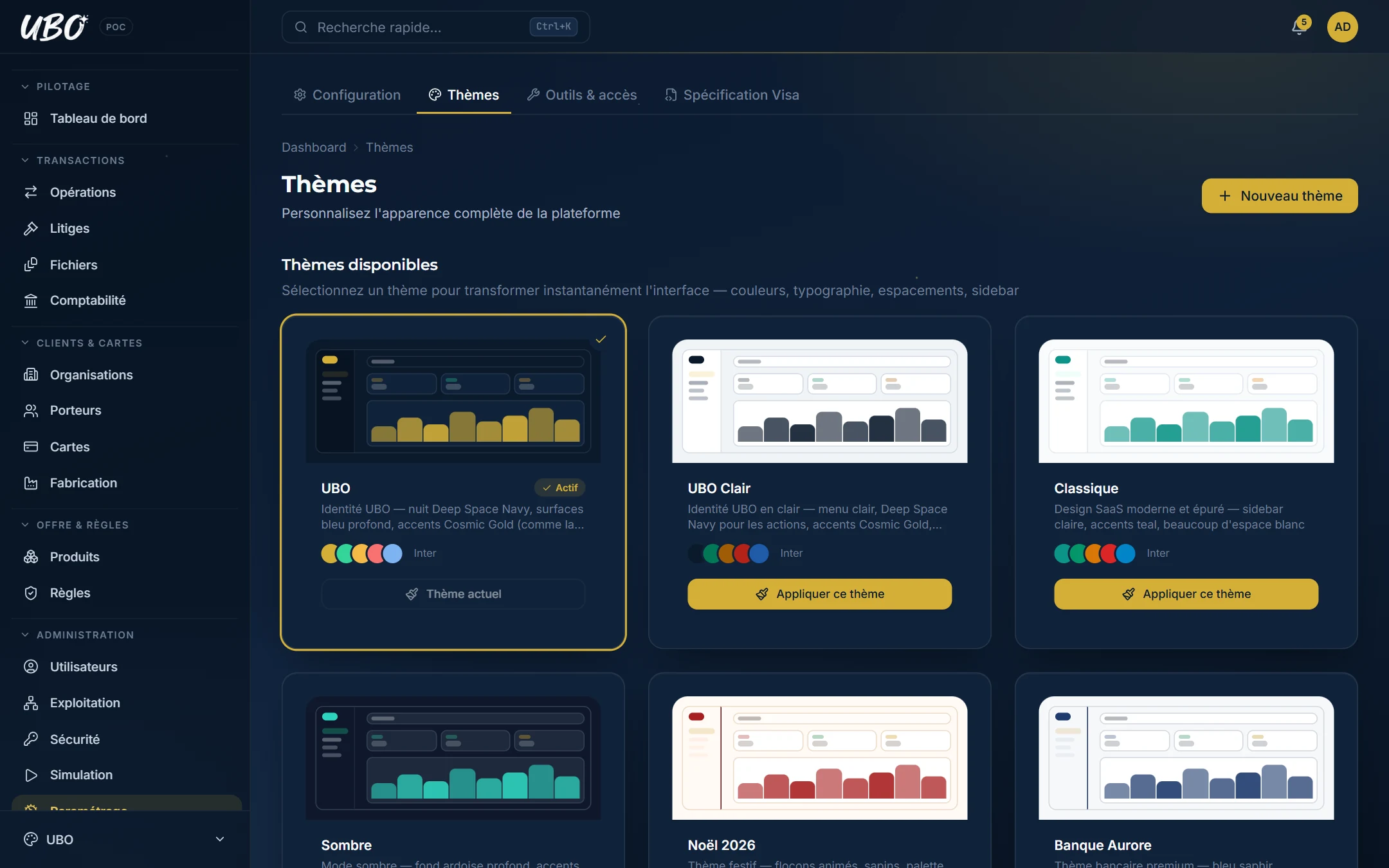
Section titled “Appearance”The portal follows the theme chosen by your bank (the UBO theme by default). Administrators can create others: colours, typography, corners, logo.